How to play Final Stage

Final Stage
- Mode: Teams 4x4
finished


Teams: 16
FAQ
To participate in tournaments held on the pubg.starladder.com platform, all participants must have a profile on the website.
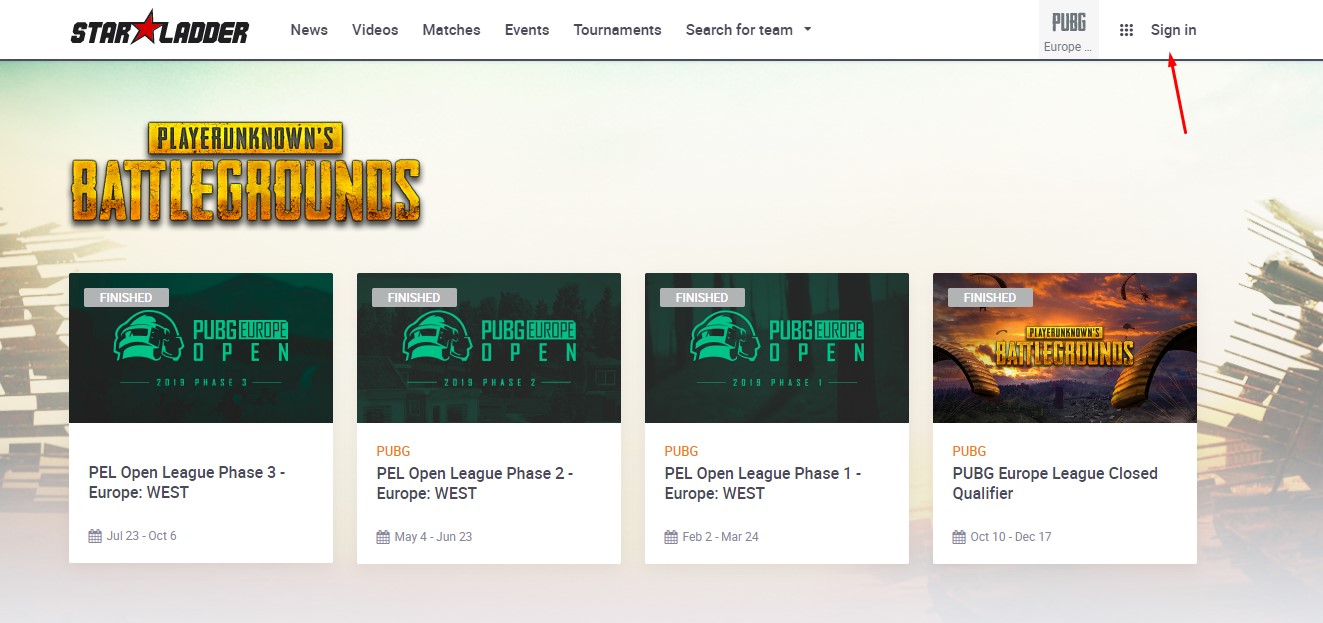
You can create one in a few simple steps, if you don’t have it already:1. Press the Sign-Up button
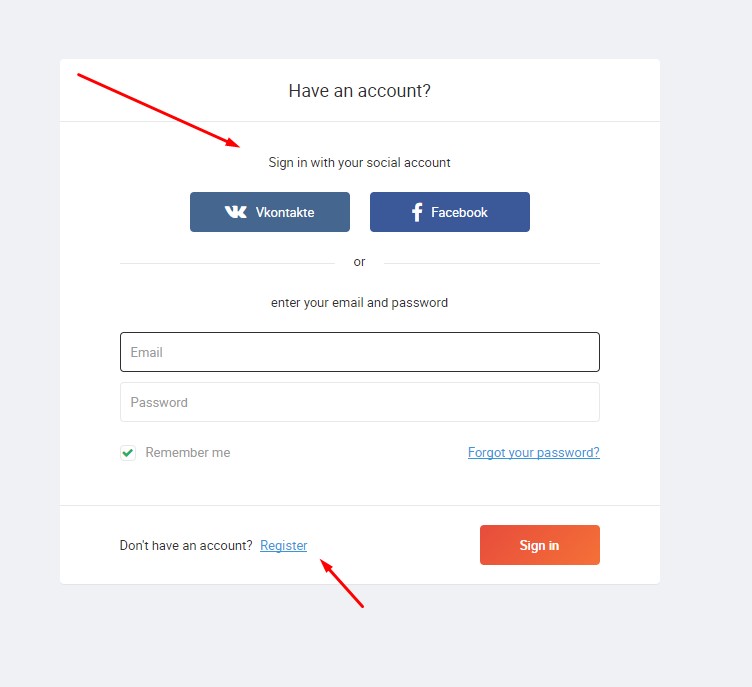
2. Register using the proposed social networks or the "Register" button
After creating a profile on the website, you need to go through the game activation process:
1. Click on your profile icon in the upper right corner
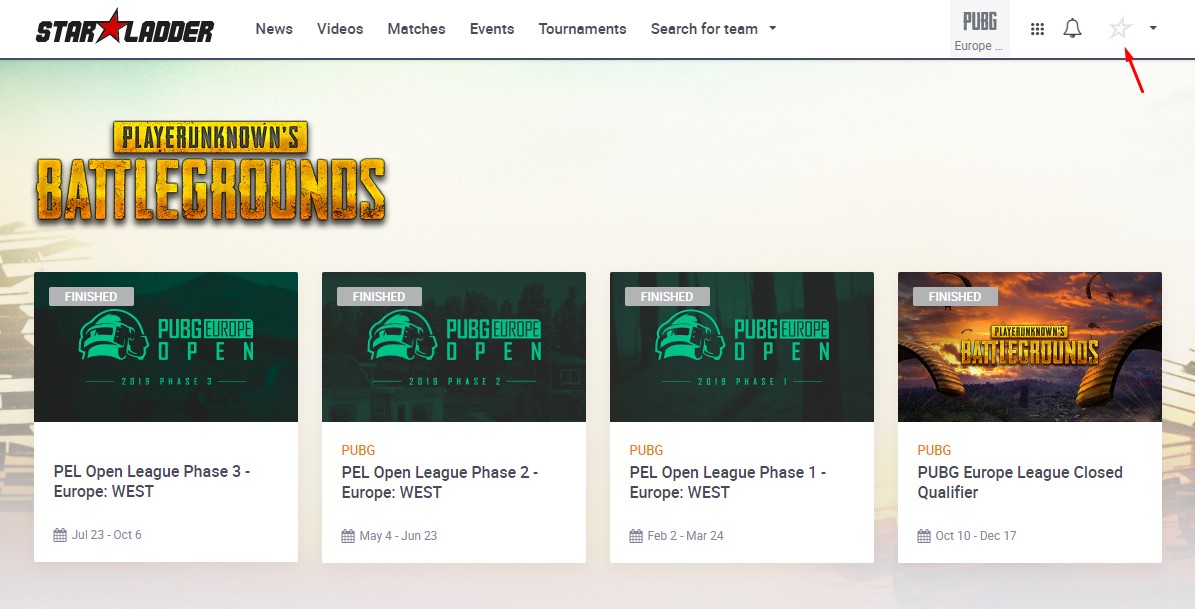
2. Select the "My Games" section
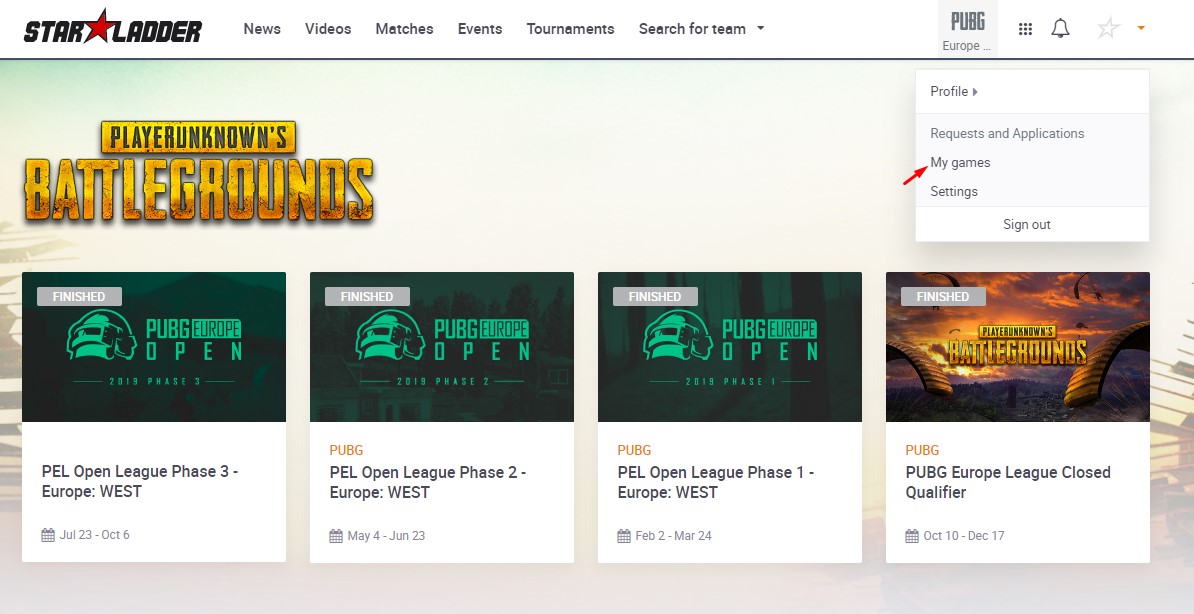
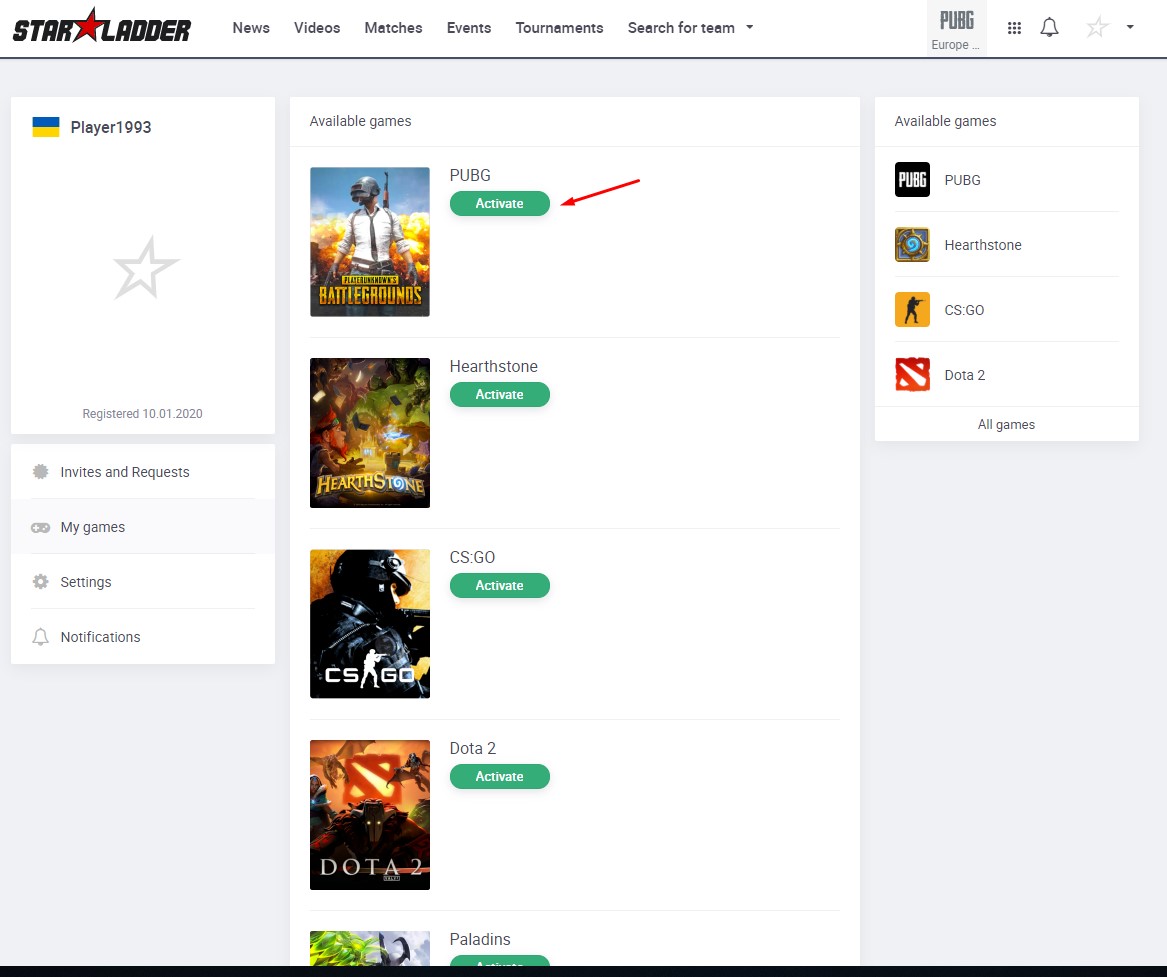
3. From the proposed list, select the one you need and click the "Activate" button
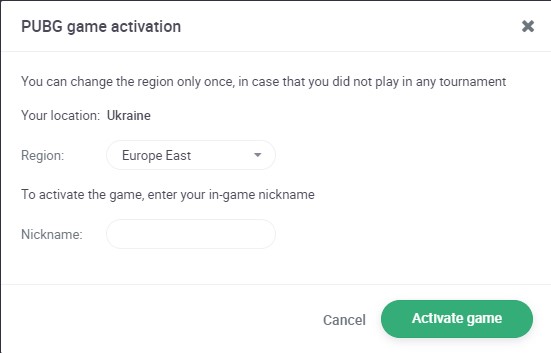
4. In the window that will appear, select the region and enter the in-game nickname.
ATTENTION. The region can be changed only 1 time. Please choose the region in which you live, because most tournaments have regional requirements.
ATTENTION. The game nickname that you specify upon activation should be 100% identical to your game nickname. Otherwise, you will not be able to participate in the tournament until you fix the mistake.
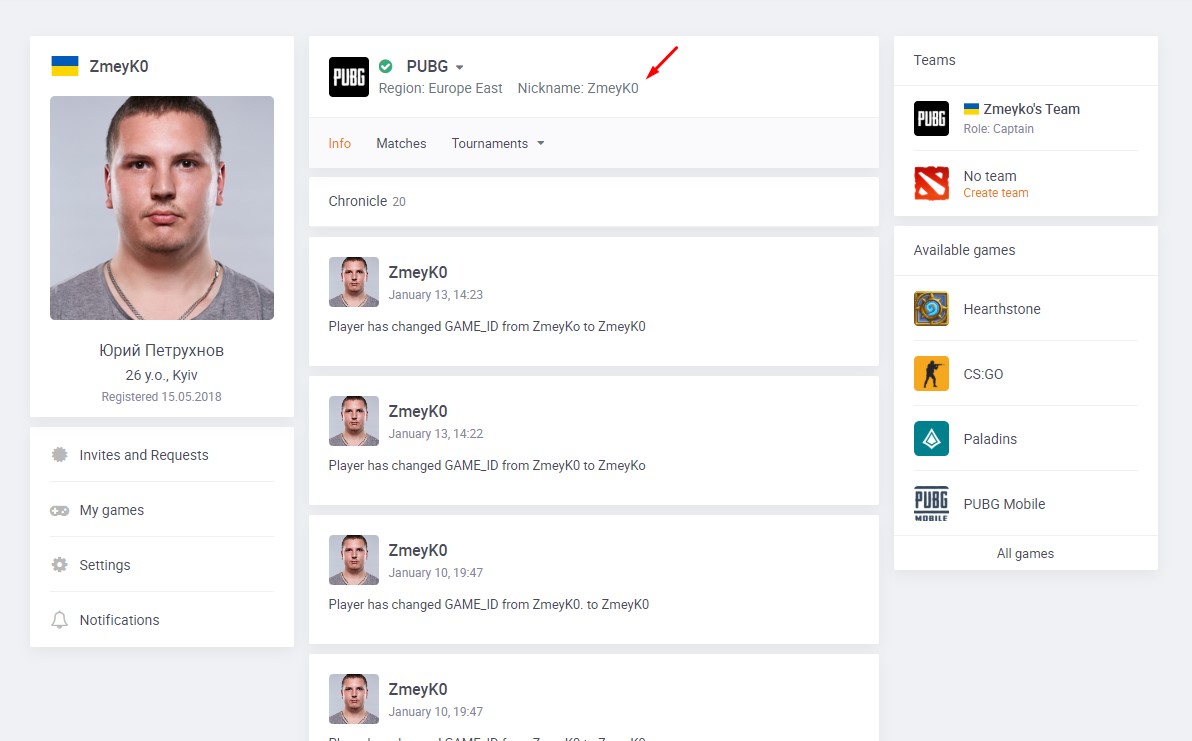
5. After activating the game, make sure that your in-game nickname is verified by the website. If the verification was successful, you will see a green checkmark at the top of the profile page. Otherwise, a red cross.
- After the seeding of teams into groups is carried out, you will be able to independently find out which group your team has been assigned to.
To do this, you need to go to the tournament page, and your group will be shown there, on the first line.
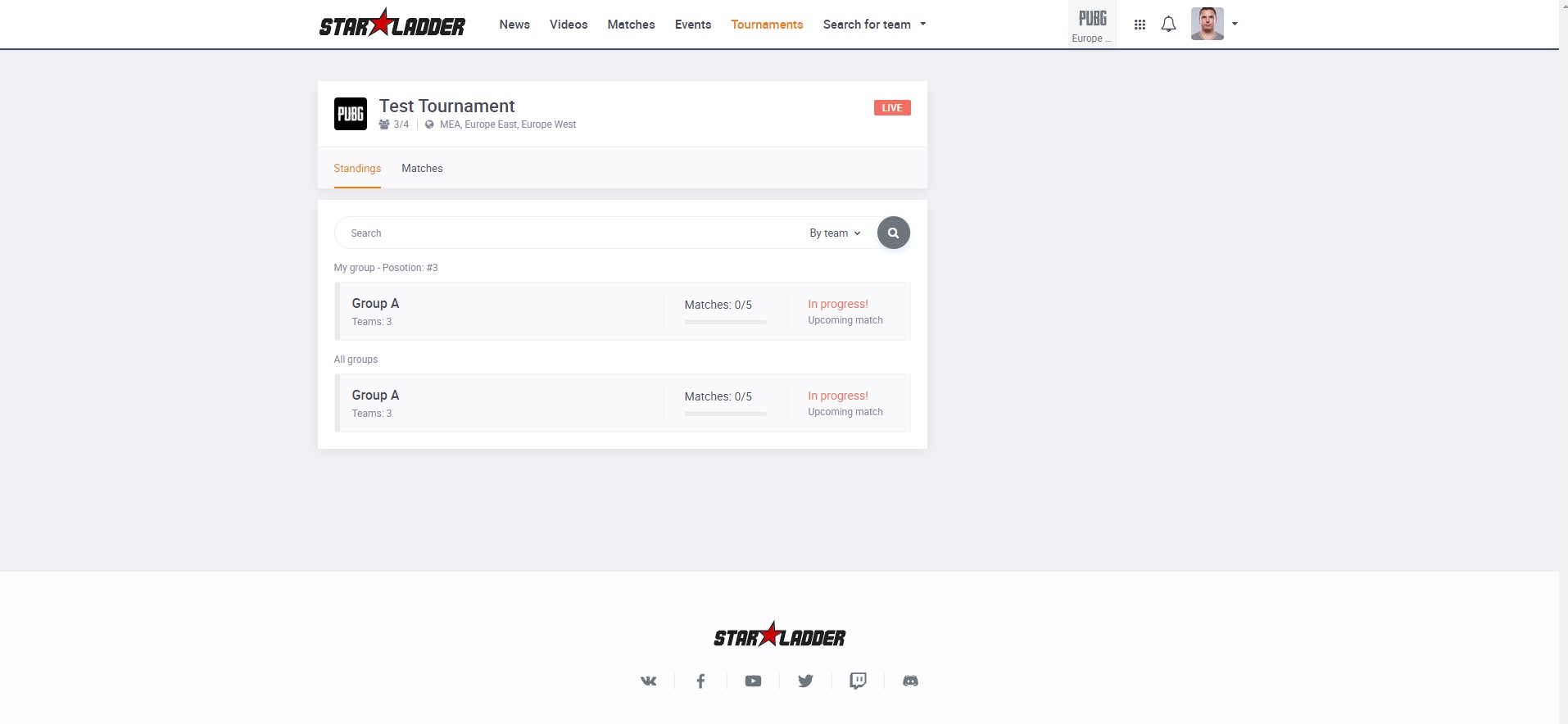
Also on the tournament page, you can preliminarily find out the date and time of your next match. To do this, you need to click on the "Matches" button

10 minutes before the start of the match, you can see all the information about the lobby. To do this, select the next match.
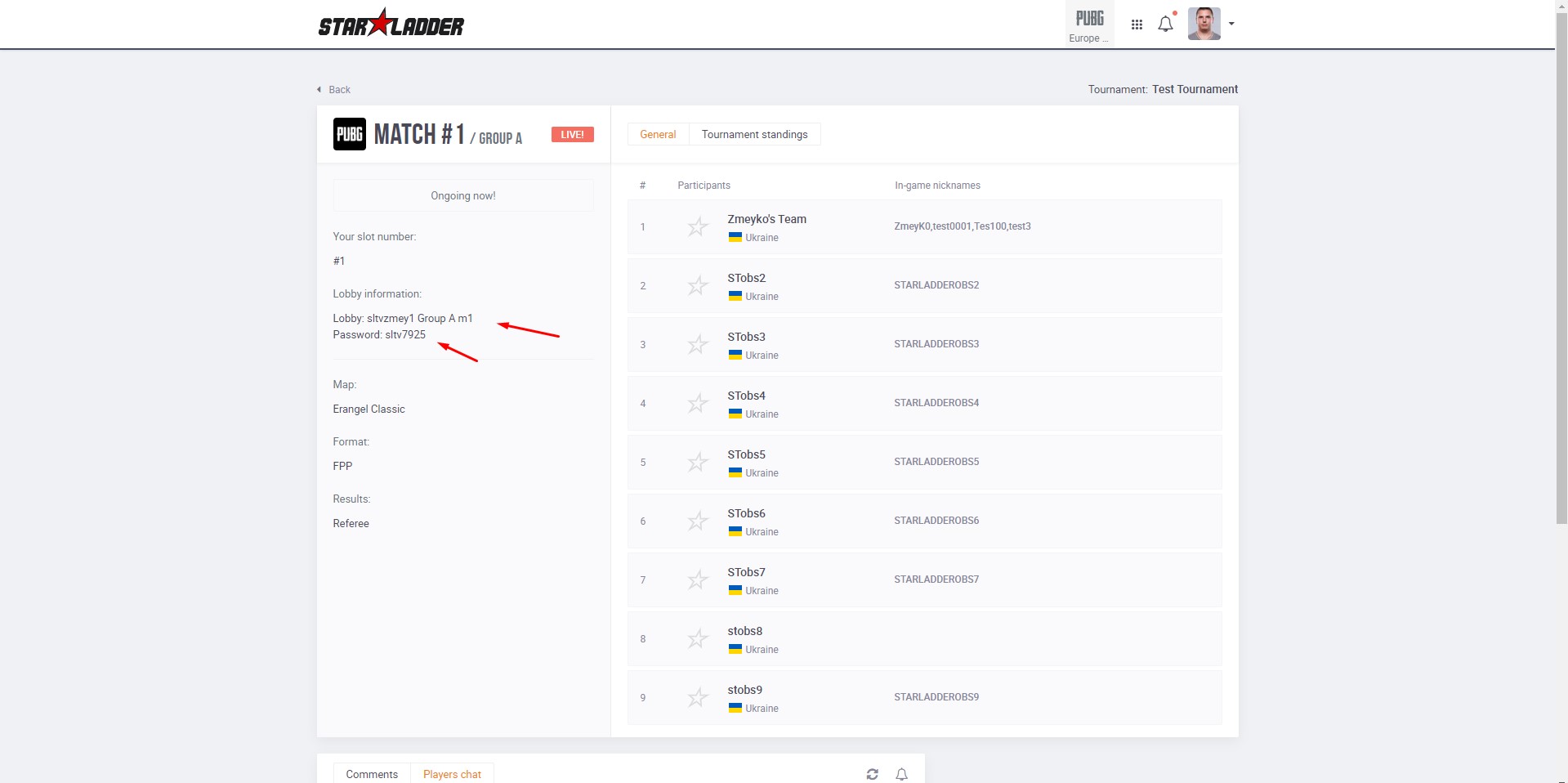
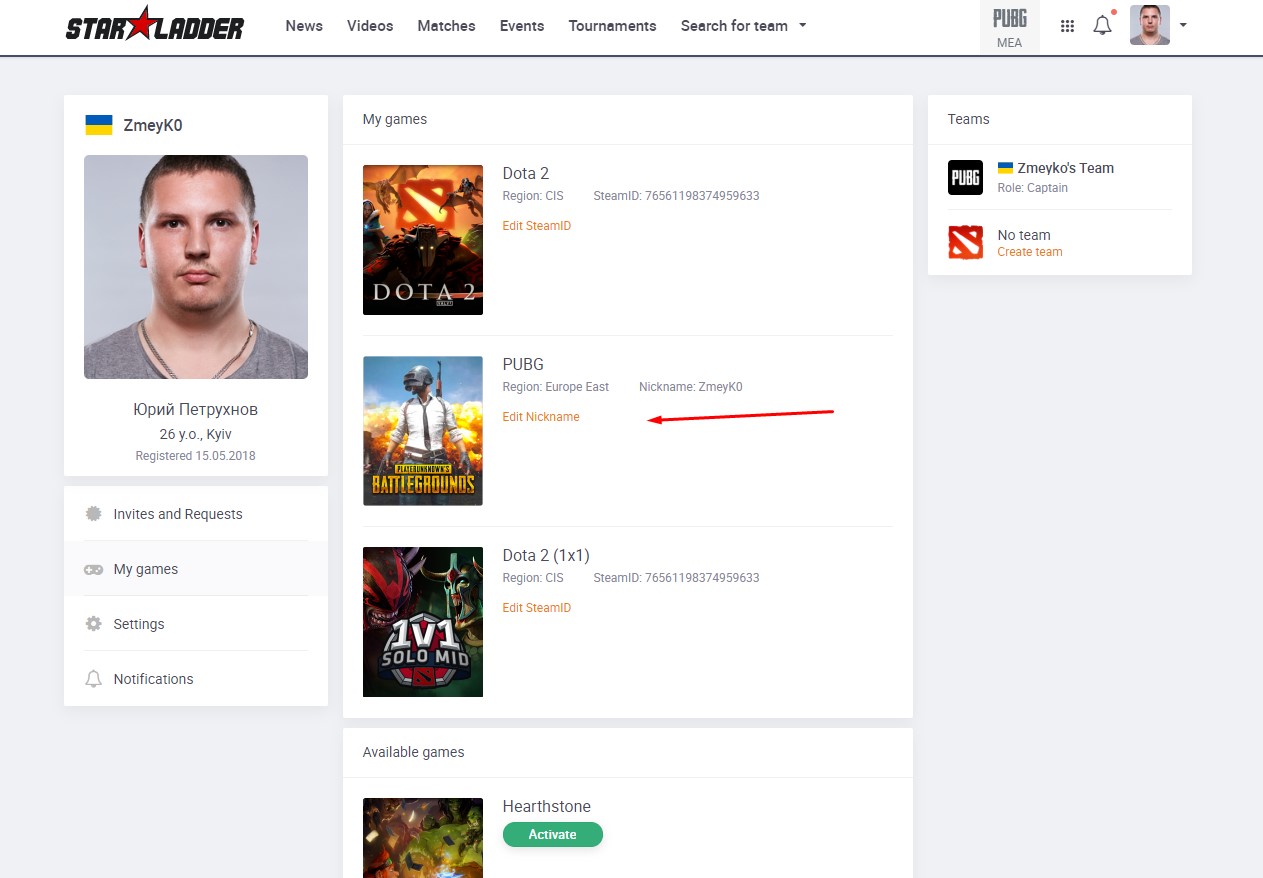
- To change the in-game nickname on the website, you need to do the following:
1. Click on the profile icon in the upper right corner
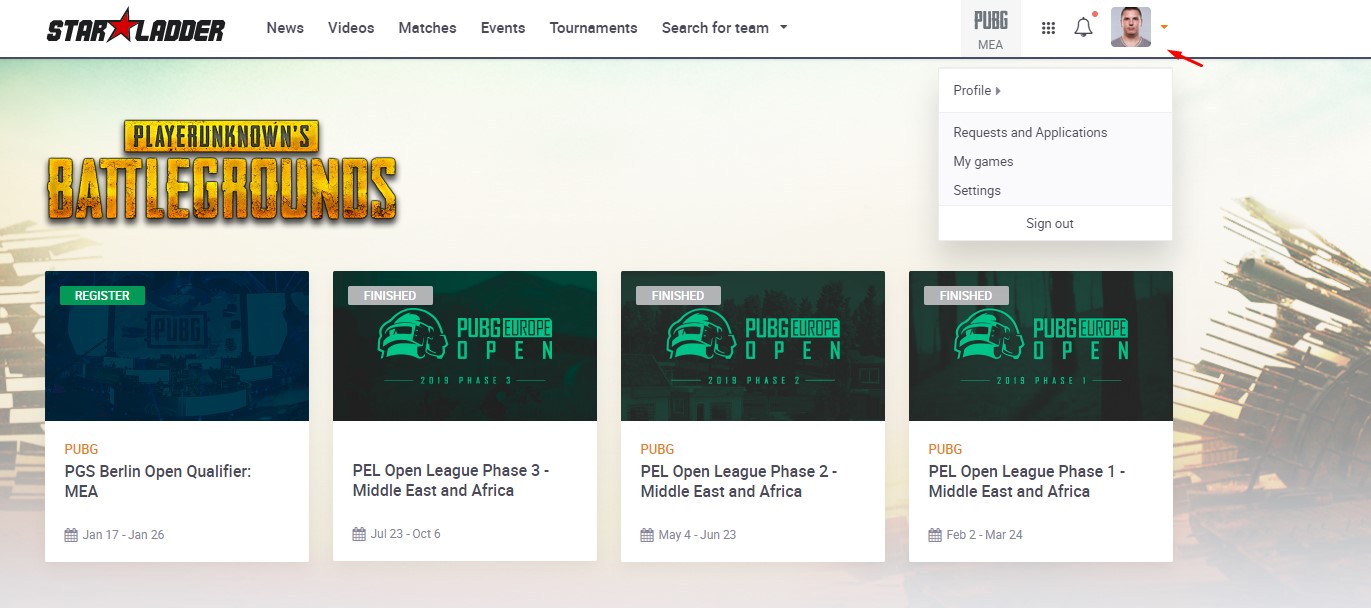
2. Click "My Games"
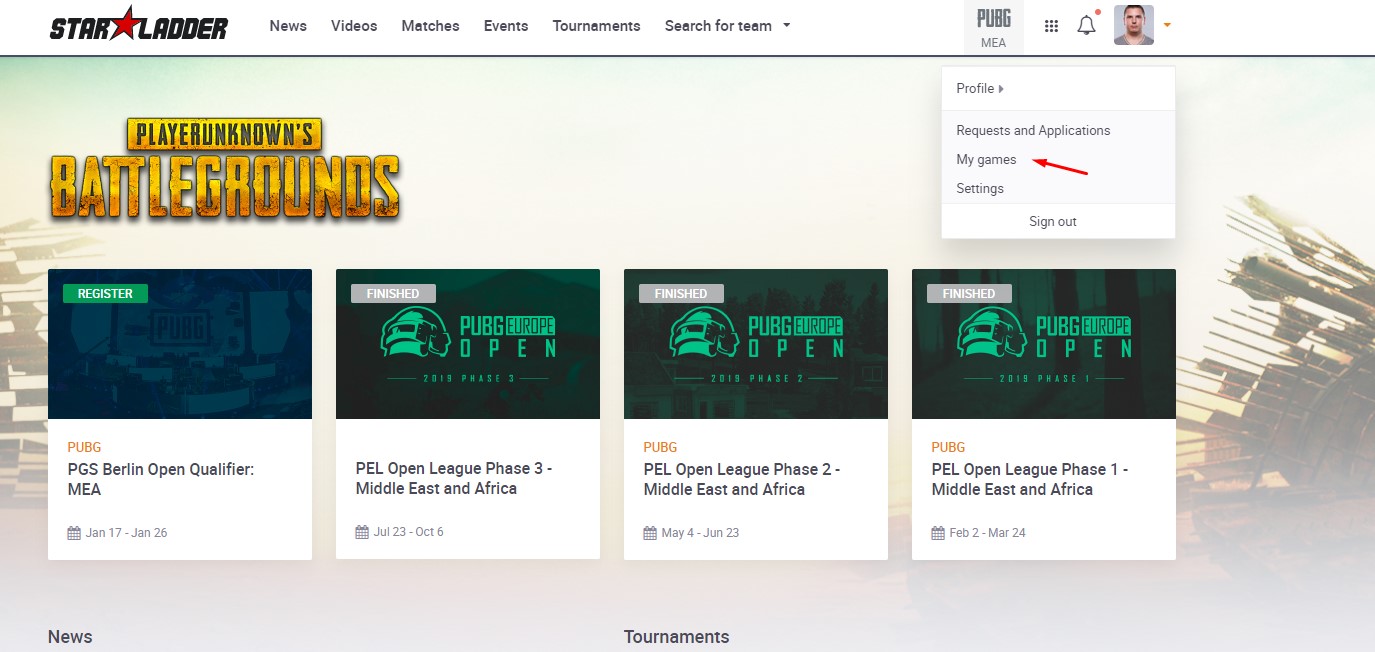
3. Click on the "Edit Nickname" button
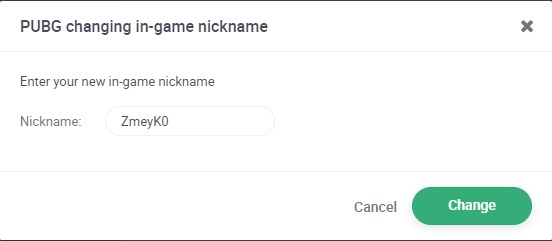
4. Enter a new nickname, and click "Edit"
5. After changing the Nickname, make sure that your Nickname is verified. The verified nickname has a green checkmark next to it. Not verified has a red cross.